What's New in ChatSDT?
Published on March 24, 2026 · 8 min read
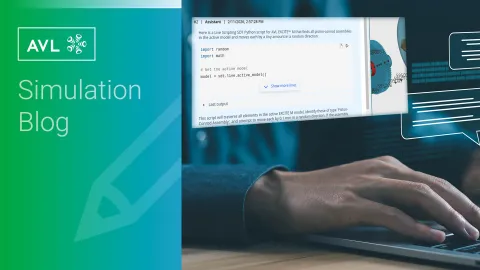
Model introspection enables ChatSDT to query details about any model, subsystem, or element in your current project.
You can ask for short descriptions, connection and interface information, and element relationships, and then refine your understanding step by step as the conversation progresses.

Here are some practical scenarios where introspection is especially useful:
Finding a specific element or subsystem in the model (by name or identifying detail)
When you know what you’re looking for, ask something focused, for example:
“Where in the model is ‘Engine_1’ located?”
“Which subsystem contains the wheel torque path in this model?”Understanding a selected element or subsystem (what it does, and why it matters)
Select an element or subsystem and ask:
“Give me a short description of this.”
Then follow up with:
“How does it connect to the rest of the model?”
Or: “Why is it configured this way?”
This works particularly well with ChatSDT’s recommended interaction style: start broad and progressively narrow down through follow-up questions.Following connections across multiple elements (end-to-end tracing)
Introspection is especially strong when you want to understand “what connects to what” across several steps, for example:
“In this model, starting at the engine, follow the main path to the wheels and explain the key elements along the way.”
This supports a structured walkthrough of topology without manually following each connection.Inspecting element properties (many, but not all)
You can ask ChatSDT to show and explain relevant properties of a selected element, for example:
“List the key properties of this element and explain what they mean.”
“Which of the properties of this element are most relevant for performance?”
Coverage depends on the property and context—many properties can be inspected, but not all.Connection and interface summaries
For a selected subsystem, you can request connection and interface information (ports, external connections, relationships) to quickly understand how it interacts with the surrounding model.Comparing two selected items (interpretation support)
If you’re reviewing variants, you can ask:
“What are the key differences between these two subsystems, and why might they matter?”
This is useful for reviews and documentation, turning a comparison into a concise, human-readable explanation.- Works well on example projects
Introspection is a great way to explore example projects (including ResBox and installation examples) to quickly understand how they are built before adapting them.
- Open your model (or an example project).
- Select an element or subsystem in the Elements or Topology pane.
- Use Send to ChatSDT to insert a link to the selected item into the chat input.
- Ask a question such as:
- “Give me a short description of this.”
- “Show connection and interface information.”
- “Follow connections from here to the wheels.”
- “Show key properties and explain them.”
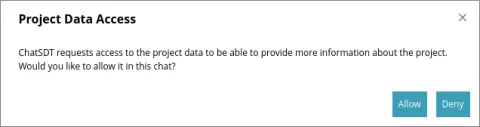
- When prompted, allow project data access so ChatSDT can analyze the model context (see Figure 2).
You can also start a more implicit discussion by referring to “the model”, “current model”, “this subsystem”, or “selected elements”, and then continue over several turns by referencing other elements by name, type, or relative position to what was already discussed.
2025 R2 delivers a major upgrade to scripting support: ChatSDT now uses a dedicated scripting agent that internally performs a structured workflow (analysis → planning → implementation → review → references/explanations), while the user sees only the final, polished result.
- This improves robustness and clarity and is particularly valuable for more complex automation tasks.
- It will take longer than earlier versions, this is an intentional tradeoff to prioritize quality and maintainability over speed.
- In addition, the SDT API itself has been extended in 2025 R2, improving what can be automated and inspected through scripts.
Several improvements to the ChatSDT frontend were introduced in 2025 R2:
- Chat refresh: refresh chats to see changes made in other windows or machines.
- Feedback comments after grading: after grading a response, you can leave a feedback comment to help improve ChatSDT.
- Collapsible code and outputs: when ChatSDT generates code, only the first lines are shown by default; expand/collapse code and longer outputs as needed.
ChatSDT can now be used as a web app by opening https://chatsdt.app.avl.com in your browser, so you can use ChatSDT without the need to install the full desktop application.
The web app supports guidance, explanations, and documentation-oriented help, but functionality that requires the AVL Simulation Suite GUI, such as script execution and model introspection—is not available in the web app.

The 2025 R2 release introduces model introspection as a new capability in ChatSDT, enabling context-aware questions about models, subsystems, and elements, particularly useful for understanding selected items, inspecting many element properties, and tracing connections across multiple elements.
It also upgrades scripting support with a new scripting agent that produces higher-quality results, while taking longer due to deeper internal analysis and review, and SDT API itself has been extended to support broader automation workflows.
Finally, frontend refinements and the new browser-based web app make ChatSDT easier to use across environments. Both the introspection agent and the scripting agent are already useful today, and we will continue making them smarter as they gain more and more AVL know-how. Your feedback remains invaluable in shaping what comes next.
Stay tuned
Don't miss the Simulation blog series. Sign up today and stay informed!
Read More About This Topic
We are proud to present our latest software release 2025 R2.

NVH analysis is typically performed after a problem has been identified that needs to be addressed. In the case of a simulation model used, it is advisable to proactively look for increased vibration and resonance so that the model can be optimized before the first prototype is built.

How simulation reveals the physics of mobile hydrogen refueling and helps optimize efficiency, safety, and speed.
Stay tuned for the Simulation Blog
Don't miss the Simulation blog series. Sign up today and stay informed!